Introduction
Using Google Maps offline is one of the best ways to travel confidently, even when mobile data fails. Whether you are exploring a foreign country, navigating remote towns, or trying to avoid roaming charges, learning how to use Google Maps offline like a pro can save time, stress, and money. This guide explains everything in a simple, expert-backed way that prioritizes clarity and practical experience. By the end, you will know how to download maps, save battery, manage storage, and use offline features effectively during real-life trips.
Understanding Why Offline Maps Matter
Many travelers assume mobile data will always be available, but real-world travel works differently. Signals drop in mountains, deserts, subways, and crowded city centers. Even in developed countries, network congestion or temporary outages can leave you stranded without navigation. This is exactly where offline maps become a lifesaver. When you know how to use Google Maps offline like a pro, you gain full access to saved areas without needing Wi-Fi or mobile data. You can still view streets, search locations, and navigate between destinations. Offline maps are also faster because your phone loads saved data instead of pulling information from the internet.
How to Download Google Maps for Offline Use
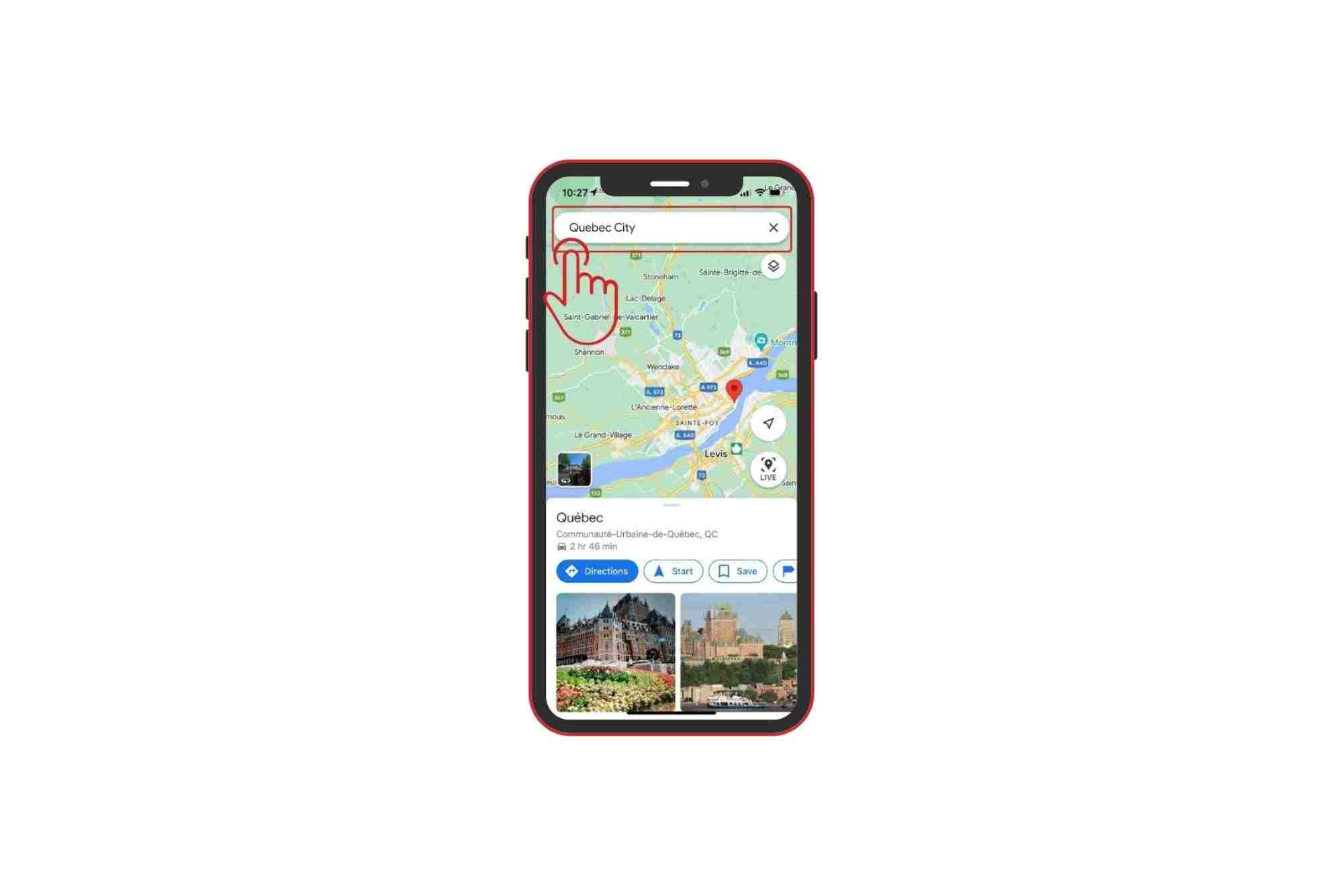
Learning how to download maps is the first skill you need. When you want to use Google Maps offline like a pro, you must prepare your maps before your trip. The download process is simple. On your device, open the Google Maps app and search for the city or region you want. Tap the map area name at the bottom of the screen and choose the download option. You will see a rectangle showing the area that will be saved. The larger the region, the more storage it requires. After confirming, Google Maps downloads the selected area and stores it safely for offline access. Always download your maps using a strong Wi-Fi connection, especially if the region is large.
How Offline Maps Work Once They Are Saved
Once the map is saved, Google Maps switches to offline mode automatically when it detects no data connection. This means you can continue navigating without doing anything extra. When learning how to use Google Maps offline like a pro, you should know which features still work and which do not. You can use turn-by-turn driving directions, explore saved streets, and search for essential locations like gas stations or landmarks. However, offline maps cannot display real-time traffic or public transit updates because those features require an internet connection. Still, the offline version remains accurate and detailed enough for most travel situations.
How to Navigate Driving Routes Offline
Using Google Maps for driving offline feels almost identical to using it online. After saving your map, open Google Maps and enter your destination. The app will calculate routes using the downloaded data. The voice navigation works smoothly, guiding you through turns even in areas with zero signal. The only thing missing is dynamic rerouting based on real-time conditions. So if you want to use Google Maps offline like a pro, always check potential traffic or construction updates before losing connection.
How to Use Offline Maps for Walking and Biking
Many travelers rely on Google Maps for walking directions, especially in new cities. Offline maps allow you to search for walking routes as long as the paths exist in the downloaded area. While walking navigation works, some features like detailed public transit directions and bike lane suggestions may not appear without internet access. Still, the saved map is extremely helpful when wandering through unfamiliar streets, markets, old towns, or nature trails where data might drop. Using Google Maps offline like a pro means planning ahead and saving the exact zones you expect to explore on foot.
How to Update and Manage Your Offline Maps
Offline maps expire after a certain period because roads, businesses, and infrastructure change regularly. Fortunately, Google Maps automatically updates saved areas when you are connected to Wi-Fi. You can also manually update them in the app settings. When using Google Maps offline like a pro, you should keep your maps fresh before every trip. If your device is low on storage, delete older map areas you no longer need. Efficient map management ensures your phone always has space for new regions.
How to Save Phone Storage While Using Offline Maps
Offline maps can consume considerable storage, especially when covering large regions. However, you can reduce the size by downloading only the specific cities or routes you plan to visit. Another helpful technique is to zoom in on the most essential areas before downloading, which reduces unnecessary map coverage. If you are learning how to use Google Maps offline like a pro, keep your offline regions organized and delete any that were used for past trips.
How to Use Google Maps Offline for International Travel
International travel is where offline maps truly shine. Instead of relying on expensive roaming plans, you can download all the region maps before departure. Google Maps offline works perfectly across borders and languages. When traveling abroad, I always download maps for major cities, airports, and transportation hubs. This ensures smooth navigation from the moment I land. Using Google Maps offline like a pro helps you avoid confusion in places where signs are unfamiliar or where data plans are costly.
How to Use Offline Maps for Road Trips
Road trips often take you through remote highways with limited signal. Offline maps allow constant navigation from start to finish. Before hitting the road, download maps for all states or provinces you will cross. Once your device has the necessary map data, you can follow your route without connection issues. If the route changes due to detours, you can still navigate as long as the new path lies within the downloaded region. When you understand how to use Google Maps offline like a pro, long journeys feel smoother and more secure.
How to Use Saved Places and Lists Offline
Google Maps allows you to save favorite spots like hotels, restaurants, and attractions. These saved places remain visible even when offline. This is extremely useful when traveling, especially when you want quick access to must-see destinations. You can create custom lists for specific trips and view them later without internet access. Learning how to use Google Maps offline like a pro means organizing your saved places so you never waste time searching during your journey.
How to Avoid Common Problems with Offline Maps
Sometimes users face issues such as incomplete downloads, outdated offline maps, or missing landmarks. Most problems occur when the map was not fully downloaded or updated. Always check your offline map status before traveling. Another common mistake is zooming too far beyond the downloaded boundary, which displays blank sections. Make sure your saved area includes your entire route. By understanding how to use Google Maps offline like a pro, you avoid surprises and navigate confidently.
Expert Tips for Mastering Offline Google Maps
Travelers with more experience often follow simple habits. They download maps for both their destination and backup areas. They save hotel locations first so they can always find their way back. They also switch their phone to airplane mode to save battery, relying entirely on offline maps for navigation. These habits improve the offline navigation experience and help avoid unnecessary stress during trips. When you learn how to use Google Maps offline like a pro, these small choices make a big difference.
Google Maps is one of the most powerful travel tools available, but the offline feature is what turns it into a true lifesaver. When you understand how to use Google Maps offline like a pro, you gain the freedom to navigate confidently anywhere in the world. Whether you are exploring remote regions, planning an international adventure, or saving battery during a long road trip, offline maps make travel smoother, faster, and safer. If you want more travel tips like this, feel free to ask. I’m here to help you plan smarter and explore the world with confidence.
Frequently Asked Questions
How do I download Google Maps offline?
You can download a region by opening Google Maps, searching for the location, tapping its name, and selecting the download option.
Can I use Google Maps offline without data?
Yes, once your maps are saved, Google Maps automatically works offline for navigation and location searches.
Does Google Maps offline use GPS?
Yes, GPS works without internet, so your location is accurate even in offline mode.
How long do offline maps last?
Offline maps usually stay active for several weeks and update automatically when you connect to Wi-Fi.
Can I get walking directions offline?
Yes, walking navigation works offline as long as the paths exist inside the downloaded map region.